Since its launch, Marvel Rivals has drawn players into a fast-paced 6v6 hero shooter where iconic Marvel characters collide across destructible maps and evolving seasonal modes. Yet beneath the polished chaos, a handful of connectivity errors can bring a match to a standstill. Among them, Error Code 4 acts like an uninvited gatekeeper that locks the lobby door from the outside, preventing players from logging into the game servers. As of 2026, the live-service title continues to receive updates, but many players still encounter recurring login, loading, verification, and DNS issues. The following guide collects the most reliable solutions reported for these problems.
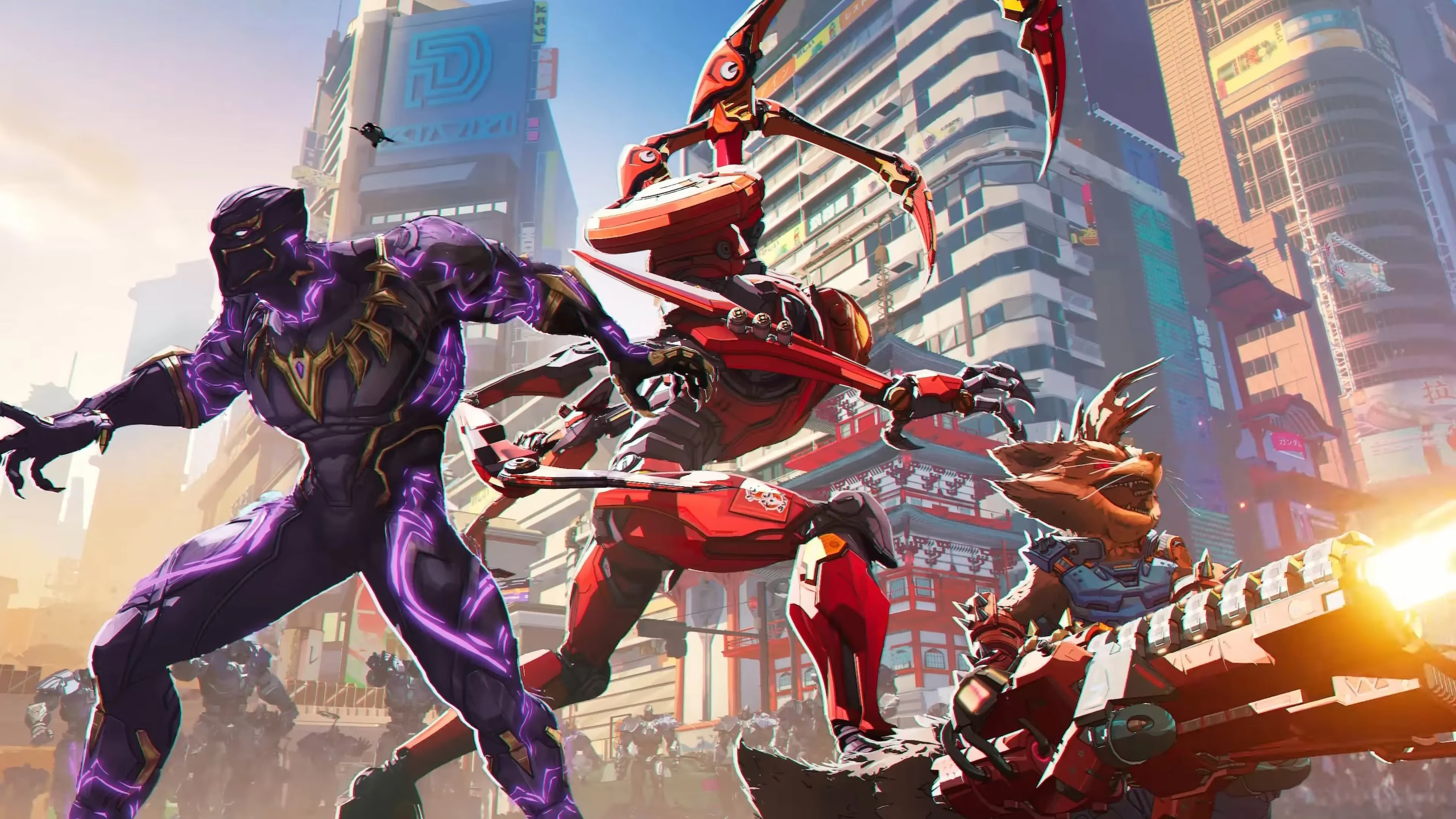
Error Code 4: Connectivity and Login Failure
Error Code 4 typically appears when the game client cannot complete a handshake with the Marvel Rivals servers. The fault may sit on the server side, but just as often it lives inside a player’s home network.
-
Check Server Status: Players should first visit the official Marvel Rivals website or social channels to confirm whether maintenance or an outage is underway.
-
Inspect the Local Connection: If the servers are healthy, the problem may be the local Wi-Fi or ISP. Using an Ethernet cable instead of Wi-Fi can reduce packet loss and stabilize network performance.
-
Restart the Game or PC: A full restart clears temporary caches and can resolve many login errors without deeper changes.
-
Flush the DNS Cache: On Windows, opening Command Prompt and typing
ipconfig /flushdnsrefreshes the network connection. This process is like clearing silt from a narrow pipe, allowing requests to flow freely again.
Players should also disable VPNs or proxy tools if they are active. Some VPN routes can interfere with the game’s regional server matchmaking, creating the same login wall as Error Code 4.
The 99% Loading Screen Bug
Another recurring complaint is the loading bar freezing at 99%. The game fills almost the entire bar, then stops just before entering a match. Unstable internet usually causes this issue.
-
Check Network Stability: Restarting the router or switching to Ethernet can remove small interruptions that prevent the final connection handshake.
-
Use a VPN: In some regions, a VPN improves the route to the nearest game server and helps the client cross the final loading threshold.
-
Close Background Programs: Update managers, streaming tools, torrent clients, and other bandwidth-hungry software should be closed before starting the game.
The 99% freeze can feel like a runner freezing one step before the finish line, not because of exhaustion but because invisible network traffic is clogging the lane.
Epic Games Store Verification Errors
Some players who launch Marvel Rivals through the Epic Games Store encounter file corruption or missing file warnings. The launcher may show an error before the game even opens.
-
Verify Game Files: Open the Epic Games Launcher, navigate to the library, click the three dots next to Marvel Rivals, and choose Verify. This scans and repairs damaged files.
-
Reinstall the Game: If verification does not solve the problem, a clean reinstall can remove deeper installation errors.
Other Network-Related Error Codes
A family of less specific network codes can also appear. Like Error Code 4, these messages point to a failed connection rather than a broken game installation.
-
Restart the Game or Device: This simple step clears temporary network states.
-
Update the Game: Since Marvel Rivals receives frequent patches, an outdated client may fail to communicate with current servers. Players should check for updates manually before assuming the network is broken.
PlayStation Error Code 5
On PlayStation consoles, Error Code 5 is one of the more frequently discussed issues. It is usually caused by unstable network connections or high latency.
-
Change DNS Settings: Connecting to Google DNS such as 8.8.8.8 and 8.8.4.4, or Cloudflare DNS such as 1.1.1.1, can reduce latency and stabilize the route.
-
Use a 5GHz Wi-Fi Band or Wired Connection: A 5GHz band is less crowded than older 2.4GHz networks. If possible, an Ethernet connection provides the most stable performance on PlayStation.
Xbox DNS Errors
On Xbox consoles, a similar connectivity failure is often tied to DNS settings rather than the game files themselves.
-
Restart the Console and Router: This clears temporary network configuration and is the quickest first step.
-
Change Xbox DNS Settings:
-
Open Xbox Network Settings.
-
Go to Advanced Settings and then DNS Settings.
-
Choose Manual.
-
Enter 8.8.8.8 for the primary DNS and 8.8.4.4 for the secondary DNS.
-
Save the settings and restart the console.
Quick Reference
| Error | Common Platform | Primary Cause | Recommended First Fix |
|---|---|---|---|
| Error Code 4 | PC and consoles | Connectivity or login handshake failure | Check server status, restart, flush DNS |
| 99% loading freeze | PC and consoles | Unstable internet | Restart router or use Ethernet |
| Epic Games verification | PC via Epic Games | Corrupted or missing files | Verify files, then reinstall |
| Error Code 5 | PlayStation | High latency or unstable Wi-Fi | Change DNS or use wired connection |
| Xbox DNS error | Xbox | DNS misconfiguration | Set manual Google DNS |
🛠️ Although these steps do not guarantee a fix for every situation, they cover the most widely reported solutions for Marvel Rivals connectivity problems in 2026. Applying them in order, from simple restarts to manual DNS changes, gives players the best chance of returning to the battlefield quickly.
Data referenced from Game Developer underscores that many “error code” roadblocks in always-online shooters often trace back to routine live-service realities—authentication handshakes, regional routing, DNS resolution, and patch-version mismatches—rather than a single broken client file. In the context of Marvel Rivals connectivity failures like Error Code 4 or 99% loading stalls, this perspective supports a practical troubleshooting order: confirm server-side incidents first, then stabilize the local network (wired where possible), clear cached name resolution, and only afterward pivot to launcher-level integrity checks or reinstalls.